Your first OAuth connection
This getting started guide will walk you through how to implement the OAuth 2.0 Authorization Code Flow with PKCE.
This flow allows sellers to grant specific permissions (scopes) to your application without ever sharing their Depop password.
Prerequisites
Before you start, make sure you have:
- A Testing OAuth Client configured. This means you have a
client_id,client_secretand aredirect_uri. Our API is currently private and is not available to the general public. If you are interested in integrating with Depop, please contact us at [email protected], and we'll get back to you with the next steps. - Postman installed with an account. You can use any client but this guide will use Postman as an example.
- Postman configured for this API. If you haven't done this yet, please follow the Your first listing guide first.
Quick OAuth 2.0 Flow summary
The OAuth 2.0 flow is a three-step process:
-
Request Authorization: Your application redirects a seller to a Depop authorization page.
-
User Grants Consent: The seller logs in to Depop and approves the permissions (scopes) your application is requesting.
-
Exchange Code for Token: Depop redirects the seller back to your application with a temporary
authorization_code. Your server then securely exchanges this code for a short-lived Access Token and a long-lived Refresh Token.
Learn by doing
We'll go through each step in detail below, including a "Try it out now" section at the end of each step.
Step 1: Request Authorization
To begin the flow, your application needs to redirect the seller's browser to the Depop authorization endpoint. You'll construct following URL with several query parameters:
Required Query Parameters
You must include all of the following query parameters in the URL:
| Parameter | Description |
|---|---|
response_type |
Must be code. |
client_id |
Your application's unique Client ID provided by Depop. |
redirect_uri |
The URL where Depop will redirect the user after authorization. This must exactly match one of the Redirect URIs registered for your application. |
state |
An opaque value used to maintain state between the request and callback. It's also used to prevent cross-site request forgery (CSRF) attacks. Generate a unique, random, non-guessable value for each authorization request. |
scope |
A list of permissions (scopes) your application is requesting. Joined with +.See Access Scopes to learn which ones you can use. |
code_challenge |
The PKCE code challenge, generated from the code_verifier. See PKCE Code Challenge below. |
code_challenge_method |
The method used to generate the code_challenge. Must be S256. |
PKCE Code Challenge
PKCE is a security extension to protect against authorization code interception attacks and is required for our integration.
Before redirecting the user:
- Generate a
code_verifier: Create a high-entropy, cryptographically random string (43-128 characters, using[A-Za-z0-9._~-]). Store this securely (e.g., in the user's session) as you'll need it later. - Generate the
code_challenge: Calculate the SHA-256 hash of thecode_verifier, then Base64 URL-encode the hash. This is the value you send in thecode_challengeparameter.
Try it out now
For testing purposes, you can use the following example values:
code_verifier:vvkdljkejllufrvbhgeiegrnvufrhvrffnkvcknjvfidcode_challenge:DSWlW2Abh-cf8CeLL8-g3hQ2WQyYdKyiu83u_s7nRhI
Or you can generate one using this tool: PKCE Code Challenge Generator.
Example Authorization URL
Here's an example of a complete authorization URL with the parameters:
https://www.depop.com/settings/oauth/apps/?
response_type=code&
client_id=<YOUR_CLIENT_ID_HERE>&
redirect_uri=<YOUR_URL_ENCODED_REDIRECT_URI_HERE>&
state=abc123xyz&
scope=products_read%2Bproducts_write&
code_challenge=DSWlW2Abh-cf8CeLL8-g3hQ2WQyYdKyiu83u_s7nRhI&
code_challenge_method=S256
Once you have constructed this URL, redirect the seller's browser to it. They will be prompted to log in to Depop (if they aren't already) and shown a consent screen listing the scopes you requested.
Here's how the consent page looks like:
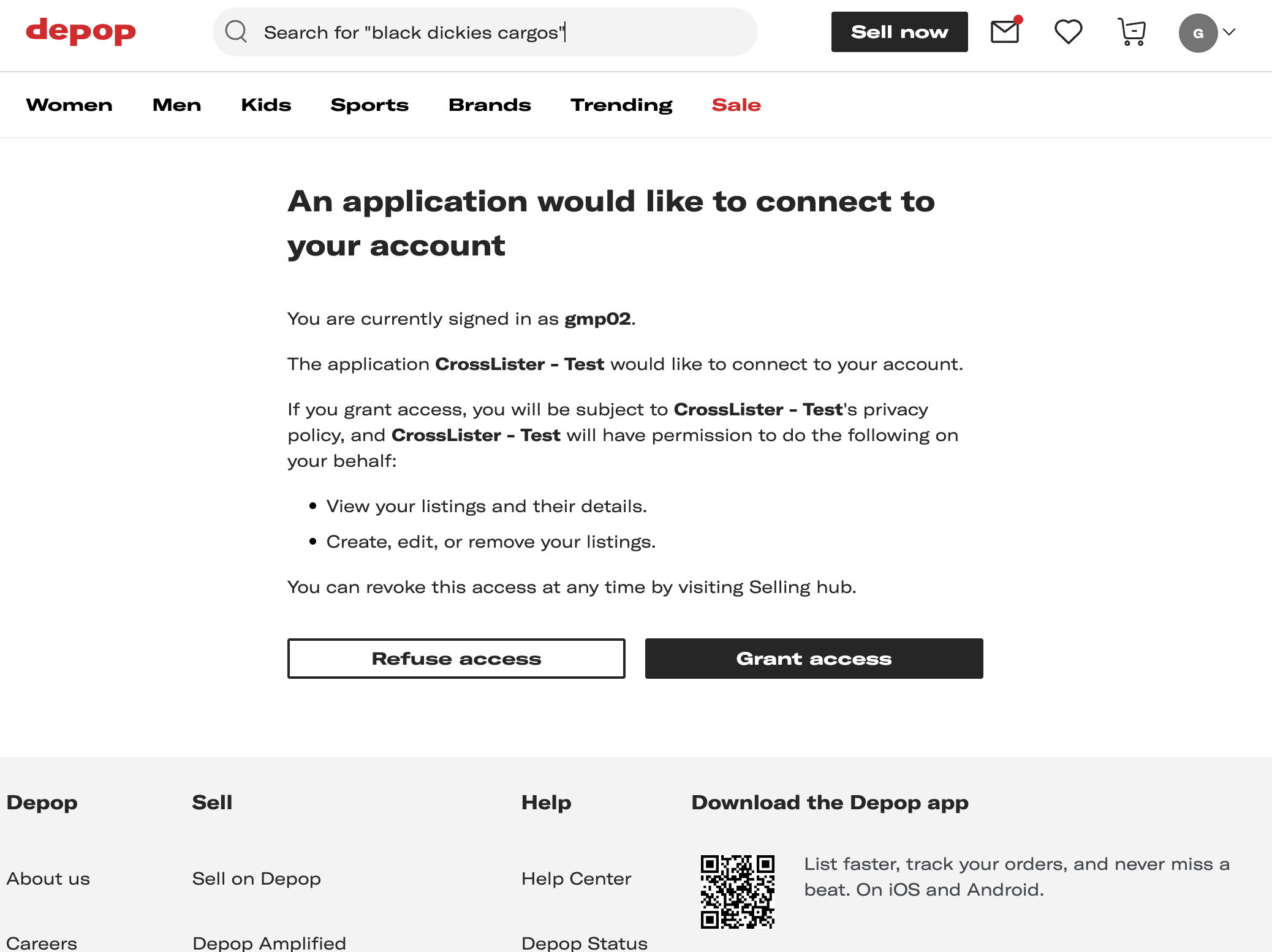
At this point, the seller can then choose to approve or deny the request. The next step covers how to handle both scenarios.
Try it out now
Copy the example URL above into your browser. Make sure to replace the client_id and
redirect_uri with your own values. You can keep all the other parameters as is for testing.
Don't click any buttons yet! We'll cover them on the next step.
Step 2: Seller Grants Consent
After the seller reviews the requested permissions, they can either approve or deny the request.
Consent Granted Response
If the seller grants consent, the browser is taken to the redirect URL plus following query parameters:
| Parameter | Description |
|---|---|
code |
A temporary (10-minute), single-use authorization code. |
state |
The exact same state value you provided in the initial request. |
Example Redirect URL
Warning
Security check: Your application must verify that the state parameter received exactly matches the value you
stored before initiating the flow in Step 1. This prevents CSRF attacks.
Consent Denied Response Or Error
If the seller denies consent, or there's an error, the browser is taken to the redirect URL plus following query parameters:
| Parameter | Description |
|---|---|
error |
The error code, e.g., access_denied. |
error_description |
A human-readable description of the error. |
state |
The exact same state value you provided in the initial request. |
Example Redirect URL
https://yourapp.com/callback?
    error=access_denied&
    error_description=The+resource+owner+denied+the+request&
    state=abc123xyz
Your application should handle these error responses gracefully, typically by displaying a message to the user.
Try it out now
Go ahead and click 'Grant access'. Notice how you're redirected to the redirect_uri with a code and state parameter.
Make a note of the code value as you'll need it for the next step.
Once you have successfully received the code and verified the state, you are ready for the final step.
Step 3: Exchange Code for Tokens
You've sent the seller to Depop, and they have granted consent and now you have the authorization code. Great!
Your server must now make a secure, server-to-server POST request to the Depop token endpoint to exchange the authorization code for an Access Token and a Refresh Token that will allow you to make authenticated API requests on behalf of the seller to manage their shop.
The token endpoint URL:
Request Parameters
The request must be sent with a Content-Type header of application/x-www-form-urlencoded and include the following
parameters in the request body:
| Parameter | Description |
|---|---|
grant_type |
Must be authorization_code. |
code |
The authorization_code you received in Step 2.. |
client_id |
Your application's Client ID. |
client_secret |
Your application's Client Secret. |
redirect_uri |
The URL where Depop will redirect the user after authorization. This must exactly match one of the Redirect URIs registered for your application. |
code_verifier |
The original, secret code_verifier string that you generated in Step 1 and used to create the code_challenge. See PKCE Code Challenge. |
Successful Response
If the request is valid, the token endpoint will return a 200 OK response with a JSON body containing the tokens:
{
    "access_token": "pat_ce7369a3b786440ba2f190029ff11ca3_e3469ba5c2ba0972190d64fd25f61776c834f648",
    "refresh_token": "prt_ce7369a3b786440ba2f190029ff11ca3_698be9ee4f095376e933f93ff4910b2a723caac8",
    "expires_in": 3600,
    "token_type": "Bearer"
}
| Parameter | Description |
|---|---|
access_token |
The short-lived token (1 hour) used to make authenticated requests to the Depop Partner API. |
refresh_token |
The long-lived token (1 year) used to obtain a new access token when the current one expires. Store this securely. |
expires_in |
The lifetime of the access token in seconds (e.g., 3600 for 1 hour). |
token_type |
Always Bearer. Indicates how to use the access token in API requests (Authorization: Bearer <token>). |
You should store the refresh_token securely and use it to obtain new access tokens when needed. To learn how to do this, read our Using OAuth Refresh Tokens guide.
Error Response
If the request fails (e.g., invalid code, incorrect redirect_uri, failed PKCE verification, invalid client credentials), the token endpoint will return an error response, typically with a 400 Bad Request or 401 Unauthorized status code and a JSON body describing the error:
{
    "code": 400,
    "error": "invalid_grant",
    "message": "Authorization code is invalid, expired, or has already been used",
    "id": "472c84b2-34c2-43f3-99bb-b50d05ef6bff",
    "detail": "Authorization code is invalid, expired, or has already been used",
    "error_message": "Authorization code is invalid, expired, or has already been used",
    "error_description": "Authorization code is invalid, expired, or has already been used"
}
Please refer to OAuth 2.0 specification, Section 5.2 for a comprehensive list of error codes and their meanings.
Try it out now
Let's try it out now using Postman, by following these steps:
- Open the Seller API collection.
- Expand
api/v1>oauth2and select theOAuth 2.0 token endpoint (authorization code exchange)request. - Underneath the URL, click on the Body tab.
- Make sure it's set to
x-www-form-urlencoded. - Change
code_verifierwithvvkdljkejllufrvbhgeiegrnvufrhvrffnkvcknjvfidor the one you generated in Step 1. - Change the other fields to match your application's details and the values you received in previous steps.
- Untick
refresh_tokenas this is not needed for this request.
Did you manage to get the access_token? Congratulations! You have successfully completed the OAuth 2.0 Authorization Code Flow with PKCE. 🎉
Step 4: Making Authenticated Requests
With the access_token obtained in Step 3, you can now make authenticated requests to the Depop Partner API on behalf of the seller.
Try using this token to make a request to the Get all Products endpoint:
- Open the Seller API collection.
- Expand
api/v1>productsand select theGet all Productsrequest. - Underneath the URL, click on the Authorization tab.
- You should see Bearer Token auth type with
{{bearerToken}}field already present. If not, select Bearer Token from the dropdown and enter{{bearerToken}}in the field. - Now enter your Access Token by hovering over the
{{bearerToken}}.
This will work just like with API Keys.
Next Steps
Now that you have obtained your Access Token and Refresh Token, you are ready to:
- Make API Calls: See step 4 above for a quick example.
- Handle Token Expiration: Understand how to use your Refresh Token to get a new Access Token when the current one expires. See our Using OAuth Refresh Tokens guide.
- Understand Scopes: You can find a full list of available permissions in our OAuth Access Scopes reference.